Mobile gameplay
gnomble runs in Safari and Chrome on a phone with no app to install. Turn the phone sideways, get the whole screen, and the touch layer gives you a thumbstick, drag-to-look, and big buttons for everything else. This page covers what is different on a phone; the How to play guide covers the game itself.
Get the whole screen
Landscape is the way to play. In portrait the game shows a reminder to turn the phone sideways. On iPhone, Safari keeps its address bar over the top of the arena, which squeezes the view. Two taps fix that.
- Start any match and turn the phone sideways.
- Tap the ⛶ button at the top right of the screen. A hint appears: swipe up once to hide Safari's bars.
- Swipe up anywhere. Safari tucks its bar away and the arena takes the full screen for the rest of the session, rematches included.
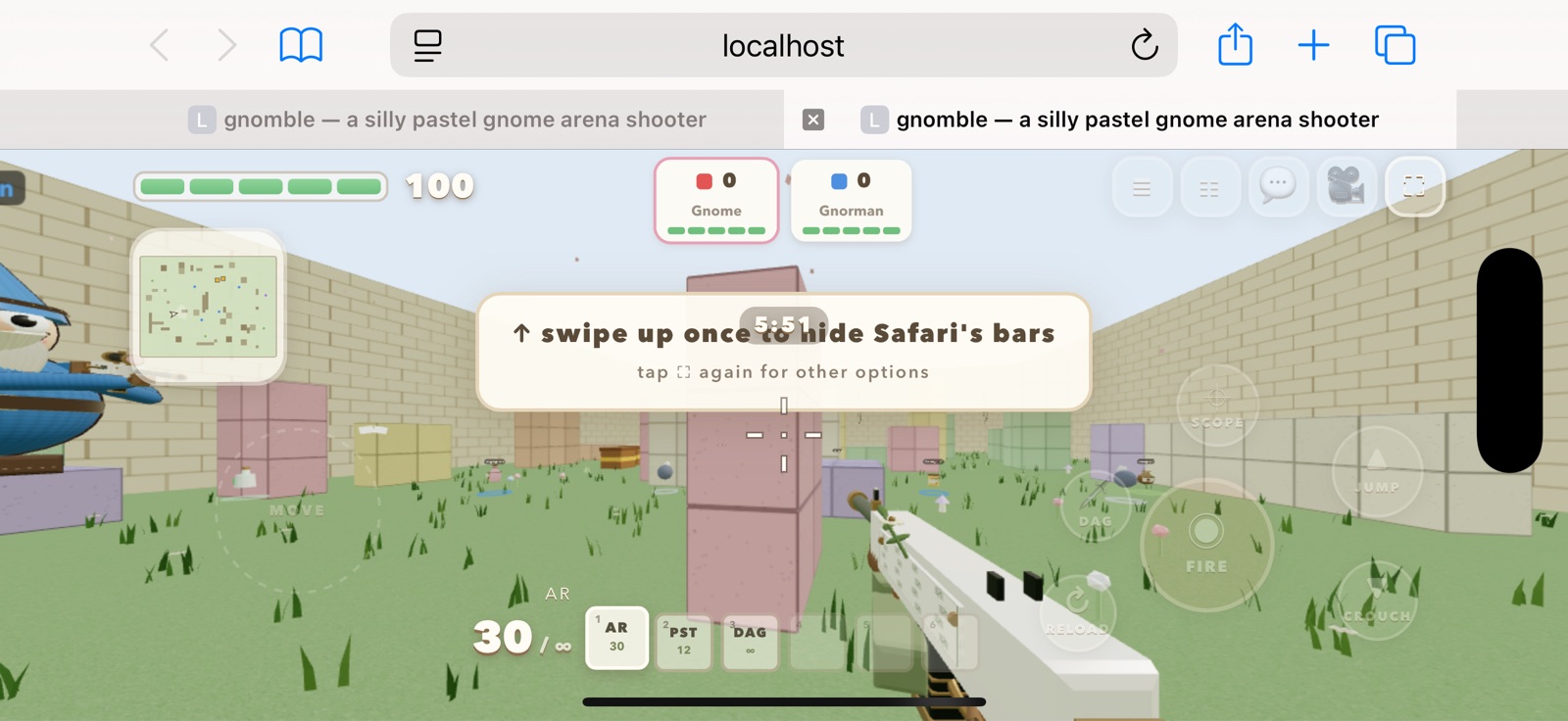
- 1Safari's bar. The address bar and tabs take a fifth of the screen in landscape.
- 2⛶. Tap once to arm the swipe.
- 3The hint. Swipe up anywhere while it shows. Tap ⛶ again instead to see the Add to Home Screen option.
On Android and iPad the same button goes straight to real full screen. To make it permanent on iPhone, add gnomble to your Home Screen: tap Share, then Add to Home Screen, and launch it from the icon. It then runs edge to edge with no browser bars at all. Tapping ⛶ a second time shows these options in the game.
The touch controls
The left half of the screen is for moving, the right half for looking. Everything else is a button.
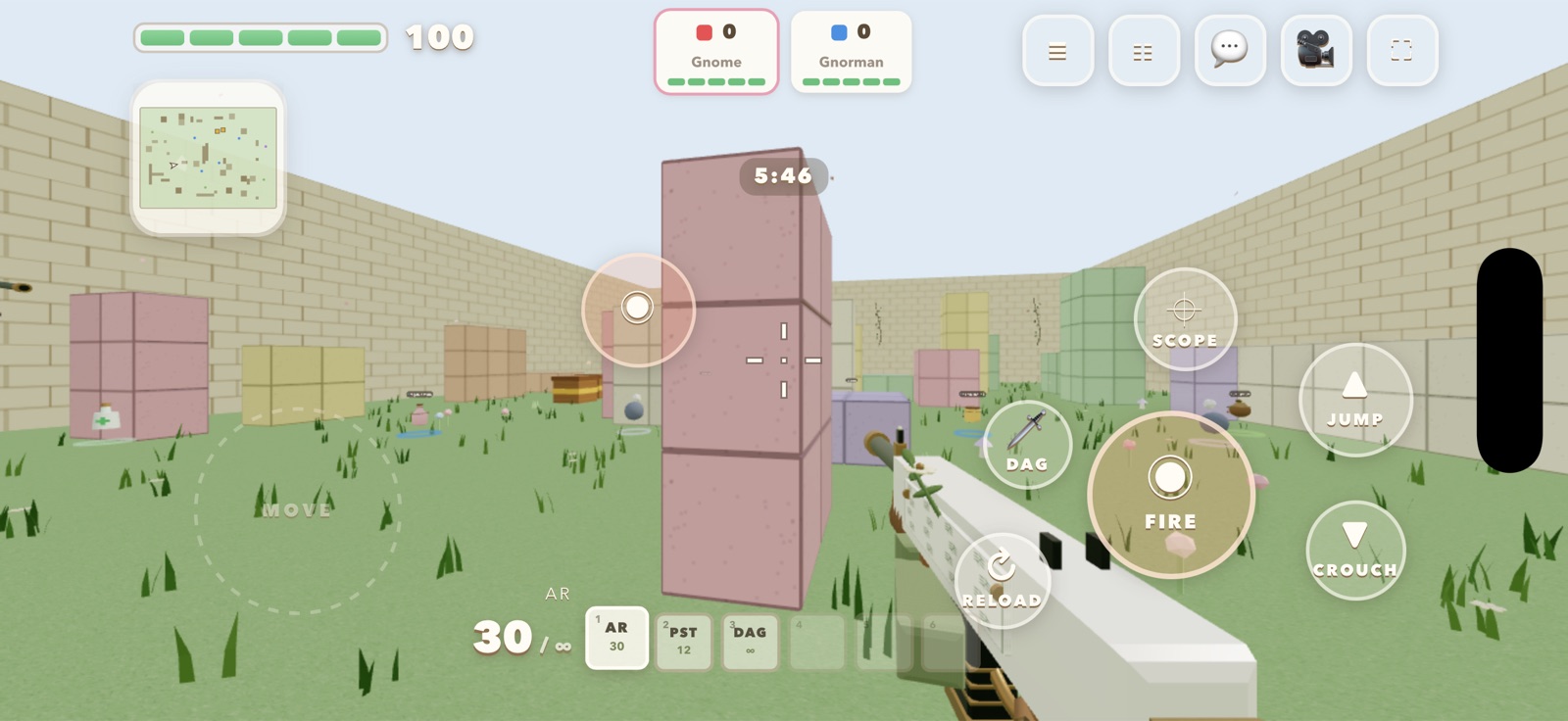
- 1Move. Put your left thumb anywhere on the left side and drag: a joystick appears under it. Push it far to sprint.
- 2Look. Drag anywhere on the right side to turn and aim. Aim assist gently slows the look near enemies; it can be turned off.
- 3Fire. Hold to shoot. Automatic weapons keep firing while you hold.
- 4Scope. Tap to toggle aiming down the sights. In matches with building on, this button places a block instead when you are holding a block stack.
- 5Jump.
- 6Crouch. Tap to toggle. Crouch while sprinting to slide.
- 7Reload.
- 8Dagger. A quick swing without switching weapons. A stab from behind does far more damage.
- 9Hotbar. Tap a slot to switch to that weapon or item. Items in slots 4 to 6 are used or thrown with the Fire button.
- 10Health.
- 11Minimap.
- 12Ammo. Magazine and reserve for what you are holding.
The top row
| Button | What it does |
|---|---|
| ≡ Pause | Pause menu: resume, settings, leave the match. |
| ☷ Scoreboard | Opens the scoreboard under the top row. Close it with the ✕ in its corner or tap ☷ again. |
| 💬 Chat | Opens the chat box. Type, send, and the keyboard goes away again. |
| 🎥 Camera | Cycles first person, third person from behind, and third person from the front. |
| ⛶ Full screen | On iPhone Safari it arms the one-swipe full screen described above. Elsewhere it toggles full screen directly. |
Tips and settings
Both live in settings. If turning feels slow, raise touch look; if your thumbs cover the buttons, make them bigger.
On by default for touch. It only slows the look speed near an enemy; it never moves the crosshair for you.
Phones start on medium. Low stretches battery further; high and ultra look best on recent devices.
On the death screen, tap AR, STUB or SR to change your primary weapon for the next life.
In the FFA garden the score strip, chat and kill feed shrink to fit the smaller screen. Tap the ... more pill under the chat to expand it.
Long matches can hit your screen timeout. Raising auto-lock in the phone's settings helps.
What is different from PC
- The middle-finger emote is a keyboard-only feature and is not on the touch layer.
- Keybinds are hidden in settings on a phone since there is nothing to rebind.
- There is no pointer lock: dragging replaces mouse look, so there is nothing to click to capture the mouse.
- Sprint is on the joystick (push far) instead of a key. Double-tap forward does not apply.